Canva vs. Photoshop for YouTube: The 30-Second Verdict
When it comes to crafting eye-catching YouTube thumbnails, the debate between Canva and Photoshop is fierce. While traditional design tools require manual work, an AI thumbnail maker can analyze your video content automatically. Both tools have their strengths, but the right choice depends on your skill level, budget, and creative vision.
Use Canva if you are a beginner, need to create thumbnails quickly, and value a vast template library.
Use Photoshop if you need full creative control, want to develop professional design skills, and require advanced photo manipulation features.
Now, let’s dive deeper into why these tools stand out and how they stack up in real-world use cases.
Step-by-Step Guide: Creating a Viral-Style YouTube Thumbnail
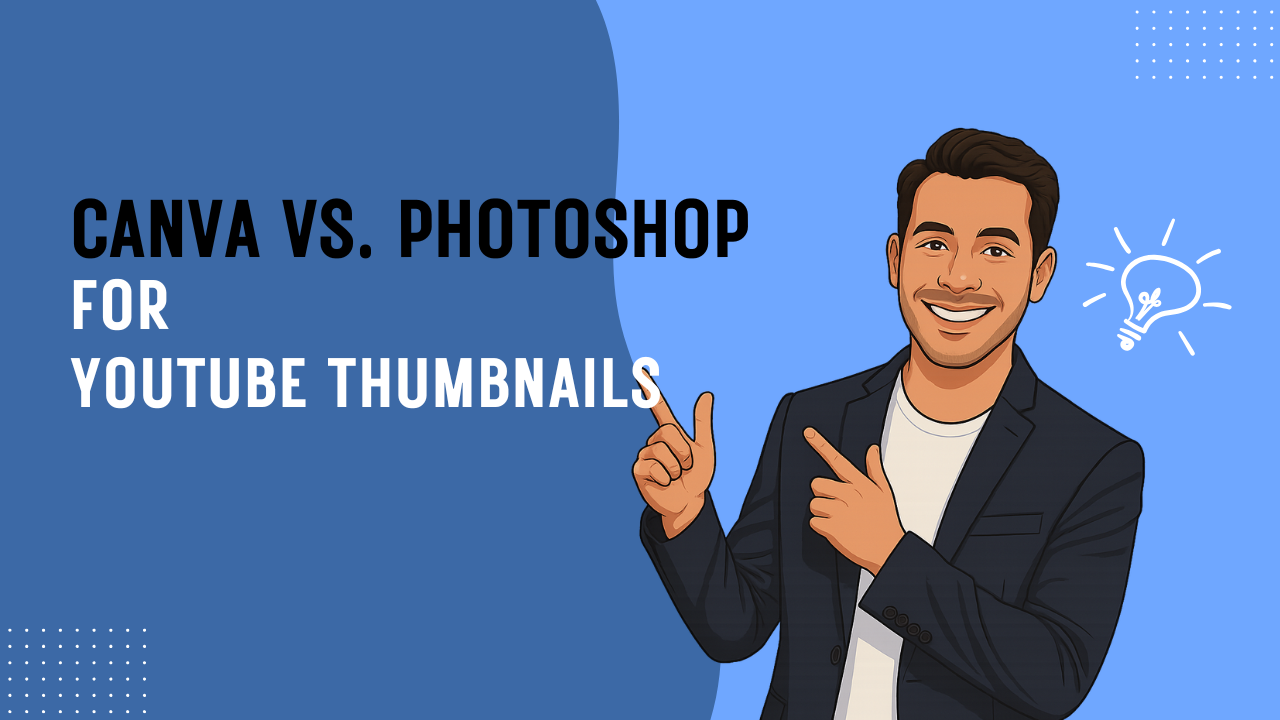
Part 1: The Canva Method (Speed & Simplicity)
Canva excels at speed and ease of use. Here’s how you can create a high-performing thumbnail in minutes:
Step 1: Choose a High-Performing Template
Canva offers over 3.6 million templates on its paid plans, with many optimized for YouTube. Search for “YouTube Thumbnail” and pick a bold, high-contrast design.
Step 2: Use the One-Click Background Remover
Upload your photo, click Background Remover, and watch as Canva isolates your subject in seconds. This tool is a game-changer for quick edits.
Step 3: Add Bold Text and Simple Shapes
Use Canva’s text tools to add a catchy headline. Choose high-contrast colors and simple shapes to draw attention to key elements.
Step 4: Apply Filters or Duotone Effects
Canva’s built-in filters can make your colors pop. A Duotone effect works especially well for dramatic thumbnails.
Step 5: Export in the Correct Dimensions
Download your thumbnail in 1280x720 pixels (YouTube’s recommended size).
Part 2: The Photoshop Method (Control & Customization)
Photoshop offers unmatched precision, but it requires more time and skill. Here’s how to do it:
Step 1: Set Up Your Canvas
Create a new 1280x720px document. Import your assets and organize them in layers.
Step 2: Make a Precise Cutout
Use the Pen Tool or Object Selection Tool for detailed cutouts. For tricky edges like hair, the Select and Mask workspace is your best friend.
Step 3: Advanced Text Manipulation
Photoshop allows full control over typography. Use Warp, Stroke, and Gradient Overlays to make your text stand out.
Step 4: Professional Color Grading
Adjustment layers like Curves and Color Balance let you fine-tune colors with precision.
Step 5: Add Custom Effects
From glows to textures, Photoshop’s layer effects enable endless creativity.
In-Depth Feature Face-Off: What’s Better for Thumbnails?
Templates vs. Blank Canvas
Canva’s templates are a lifesaver for thumbnails but can limit creativity. Photoshop’s blank canvas approach is better for unique designs but requires more effort.
Background Removal
Canva’s one-click tool is fast but struggles with complex edges. Photoshop’s Pen Tool offers perfection, if you’re willing to invest the time.
Text & Typography
Canva’s text tools are user-friendly but limited. Photoshop’s integration with Adobe Fonts and advanced text effects make it superior for professional typography.
Photo Editing & Manipulation
Canva’s filters are basic. Photoshop’s Adjustment Layers, Liquify Tool, and Content-Aware Fill provide industry-standard editing capabilities.
AI-powered tools offer yet another approach by automatically identifying thumbnail-worthy moments from your actual video content. These systems analyze emotional peaks, facial expressions, and key objects to generate multiple options that follow YouTube’s best practices for contrast and readability. This data-driven method can save time while ensuring thumbnails accurately represent your video’s most compelling moments.
Cost vs. Value: What’s the Real Price of a Great Thumbnail?
Canva Pricing
- Free Plan: Basic features and 1GB cloud storage.
- Pro Plan: $12.95/month or $119.40/year (16% discount).
Includes Background Remover, Brand Kit, and 1TB storage.
- Teams Plan: $14.99/month per seat.
Photoshop Pricing
- Photography Plan: $20.99/month (Photoshop + Lightroom).
- Creative Cloud All Apps: $54.99/month.
Hidden Cost: Time. Canva users can produce good thumbnails in minutes, while Photoshop beginners may spend hours learning the basics.
Is Canva Good Enough for a Professional YouTube Channel?
Yes! Many successful creators use Canva. For example:
- MrBeast uses bold, high-contrast designs achievable in Canva.
- AsapSCIENCE relies on clean, educational templates supported by Canva.
- MKBHD and Joey Schweitzer maintain professional looks with Canva’s tools.
The free version is limiting, but upgrading to Canva Pro unlocks features like Brand Kits for consistency and Background Remover for speed.
Beyond Thumbnails: Creating Banners, End Screens, and Channel Art
Both tools can create channel assets, but they differ in approach. Canva’s pre-sized templates streamline the process, while Photoshop’s Smart Objects and Artboards allow for cohesive branding across all assets.
The Third Contender: What About Adobe Express vs. Canva?
Adobe Express is Adobe’s answer to Canva, offering:
- AI Tools: Adobe Firefly’s Text-to-Image and Generative Fill.
- Integration: Seamless with Photoshop and Premiere Pro.
- Pricing: $9.99/month (Premium), cheaper than Canva Pro.
WayinVideo’s Thumbnail Maker represents a different approach entirely. Instead of templates or manual design, it analyzes your video content to automatically generate multiple thumbnail variations that highlight emotional peaks and key moments. The system includes Smart Portrait Integration for consistent creator branding and generates platform-ready ratios including 16:9 for YouTube, 9:16 for Shorts, and 1:1 for social media feeds.
However, Canva still leads with more templates (3.6M vs. 350K+) and a desktop app, unlike Adobe Express’s web-only approach. For creators seeking a video-first approach, WayinVideo offers specialized AI tools that analyze actual video content rather than working from static templates.
The Creator’s Dilemma: Am I Limiting My Future Skills by Only Using Canva?
Relying solely on Canva may hinder long-term skill development. Photoshop proficiency opens doors to:
- Advanced branding projects.
- Client work and freelance opportunities.
- Merchandise design.
Think of it this way: Canva is for speed, Photoshop for mastery. Start with Canva, then learn Photoshop as your channel grows.
FAQ on Canva vs. Photoshop for YouTube Thumbnails
Q1: Can I create professional thumbnails with Canva’s free plan?
Yes, but with limitations. The free plan offers basic templates and designs, but you’ll lack tools like Background Remover and Brand Kit, which are crucial for polished, consistent thumbnails. For serious creators, upgrading to Canva Pro is a worthwhile investment. The free plan is great for experimenting, but Pro unlocks features that save time and elevate quality.
Q2: Is Photoshop worth learning if I only make YouTube thumbnails?
It depends on your goals. If you’re focused solely on quick thumbnails, Canva is sufficient. However, if you aim to:
- Offer freelance design services.
- Create custom thumbnails with unique edits.
- Work in other design fields (e.g., social media graphics, merchandise).
Then Photoshop is invaluable. Its learning curve is steep, but the creative freedom and professional output justify the effort for long-term growth.
Q3: How doCanva and Photoshop compare for collaboration?
Canva excels here. Its real-time team editing allows multiple users to work on a design simultaneously, making it ideal for teams. Photoshop requires sharing files via cloud storage, which is less seamless. For solo creators, this isn’t a major factor, but for collaborative projects, Canva is the clear winner.
Q4: Which tool is better for startup founders with no design experience?
Canva is the ultimate choice for founders with little to no design experience. It offers user-friendly drag-and-drop functionality and diverse pre-designed templates. The platform allows founders to quickly craft professional-looking thumbnails, saving time while boosting their startup's visual branding.
Q5: Is Photoshop better for complex, professional YouTube thumbnails?
Yes, Photoshop is ideal for founders or designers who aim for advanced creativity and intricate design work. With unparalleled customization options and precise editing tools, it delivers professional-grade thumbnails. However, it carries a steeper learning curve and higher costs compared to Canva.
Q6: How do Canva and Photoshop differ in pricing?
Canva has both free and paid plans, making it accessible to startups on a tight budget. Photoshop, on the other hand, follows a subscription-based model that could be cost-prohibitive for some early-stage startups. However, Photoshop's features might justify the investment for startups requiring advanced graphic designs.
Q7: Can Canva replace Photoshop for startups?
Canva is a great alternative to Photoshop if speed, simplicity, and affordability are primary considerations for your startup. While it lacks Photoshop’s advanced features, its extensive template library and beginner-friendly tools often cover the basic needs of companies just starting to establish their brand.
Q8: Which platform offers better collaboration tools for remote teams?
Canva excels in collaboration options, allowing multiple users to work on a design in real-time. This is especially useful for startups with distributed teams. Photoshop does offer collaborative options, but they are not as straightforward or seamless as Canva's cloud-based system.
Q9: Can YouTube thumbnails be created faster with Canva?
Yes, Canva's pre-designed templates and one-click tools, such as the background remover, make the process incredibly swift. For startups racing against time to upload content, Canva's intuitive interface accelerates the operational workflow without compromising quality.
Q10: How can I make my startup's thumbnails stand out using Photoshop?
Leverage Photoshop’s advanced features such as the Select and Mask workspace for detailed cutouts and the use of adjustment layers like Curves for perfect color grading. Learn more about elevating designs and boosting audience engagement by exploring 13 Essential AI-Driven Marketing Best Practices to maximize your thumbnail strategies.
Conclusion
Choosing between Canva and Photoshop for YouTube thumbnails boils down to your needs: Canva for speed and simplicity, Photoshop for precision and mastery. Start with Canva if you’re new, then explore Photoshop as you grow. Both tools can deliver stunning thumbnails: pick the one that aligns with your goals and budget. Happy designing!
About the Author
Violetta Bonenkamp, also known as MeanCEO, is an experienced startup founder with an impressive educational background including an MBA and four other higher education degrees. She has over 20 years of work experience across multiple countries, including 5 years as a solopreneur and serial entrepreneur. Throughout her startup experience she has applied for multiple startup grants at the EU level, in the Netherlands and Malta, and her startups received quite a few of those. She’s been living, studying and working in many countries around the globe and her extensive multicultural experience has influenced her immensely.
About the Publication
Fe/male Switch is an innovative startup platform designed to empower women entrepreneurs through an immersive, game-like experience. Founded in 2020 during the pandemic "without any funding and without any code," this non-profit initiative has evolved into a comprehensive educational tool for aspiring female entrepreneurs.The platform was co-founded by Violetta Shishkina-Bonenkamp, who serves as CEO and one of the lead authors of the Startup News branch. The Fe/male Switch team is located in several countries, including the Netherlands and Malta.

