Whether you’re upgrading to a faster SSD, replacing a failing hard drive, or migrating your operating system to new hardware, disk clone software is the safest and most efficient way to move your data without starting from scratch. Instead of reinstalling Windows, applications, and drivers one by one, disk cloning creates an exact, bootable copy of your entire drive, saving time and minimizing the risk of data loss.
What You Need in Disk Clone Software
Not all disk clone software is created equal. Choosing the right tool can mean the difference between a smooth, bootable system migration and hours of troubleshooting. Below are the essential features you should look for.
✅ Reliable Disk and System Cloning
At a minimum, disk clone software must support full disk cloning and system cloning. Disk cloning copies every partition on a drive, while system cloning focuses only on the partitions required to boot Windows. Both options are important, depending on whether you’re migrating an entire drive or just the OS to a new SSD.
✅ Intelligent Clone Capability
Intelligent cloning allows the software to copy only used sectors instead of every sector on the disk. This feature is critical when cloning a larger HDD to a smaller SSD and also improves cloning speed. Without it, you may be forced to use a target disk equal to or larger than the source.
✅ Sector-by-Sector Clone
While intelligent cloning is ideal for most users, sector-by-sector cloning is still valuable in special cases (such as data recovery or forensic duplication) where an exact replica of the disk structure is required. Good disk clone software should give you the choice between both methods.
✅ Bootable Media Creation
Bootable media creation is essential if Windows won’t start or if you need to clone a system disk outside the active OS. With a bootable USB or CD/DVD, you can run the disk clone software in a clean environment and avoid file-locking issues during cloning.
✅ Wide Hardware and System Compatibility
High-quality disk clone software should support:
- HDDs and SSDs (SATA, NVMe, PCIe)
- MBR and GPT partition styles
- UEFI and Legacy BIOS boot modes
- Windows 11, 10, 8.1, 7 and Windows Servers
Considering all these features, AOMEI Cloner stands out as a versatile and user-friendly choice for most Windows users. It balances power and simplicity, offering both novice-friendly workflows and advanced options for IT professionals.
How to Clone a Hard Drive in Windows PC and Server
Cloning a hard drive with AOMEI Cloner is a straightforward process. Follow the steps below to clone HDD to SSD or clone SSD to larger SSD.
Step 1: Prepare Before Cloning
Before you start, make sure everything is ready to avoid interruptions or data loss:
- Install AOMEI Cloner on your Windows PC.
- Connect the target drive (SSD or HDD) to your computer.
- Back up important data on the target disk, as it will be completely overwritten.
- Ensure the target disk has enough capacity to hold the used data on the source disk.
Step 2: Launch Disk Clone
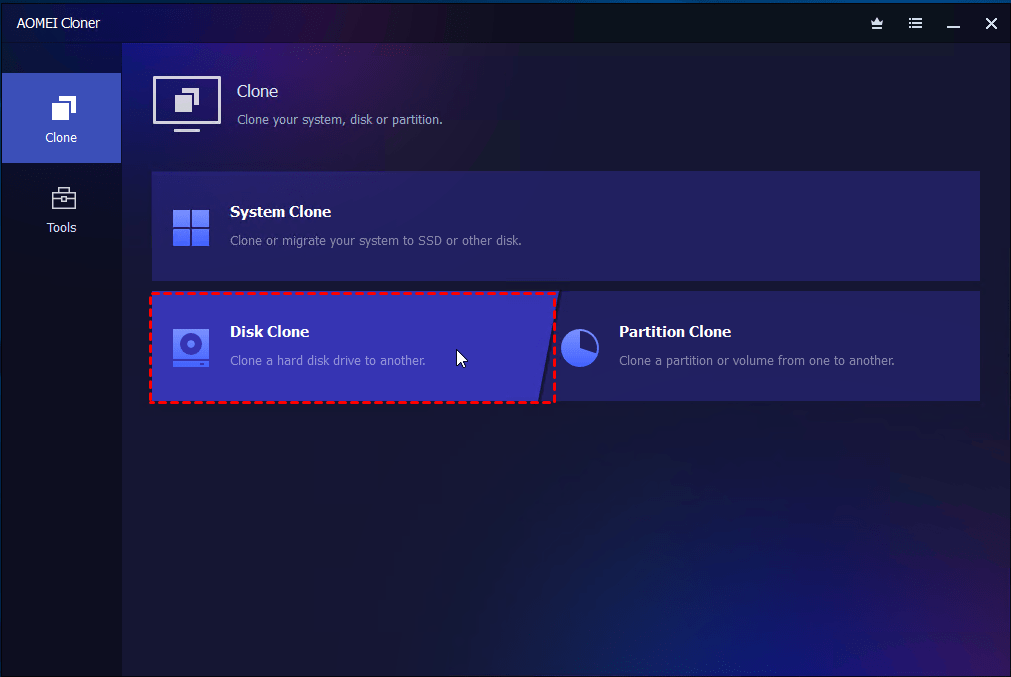
Open AOMEI Cloner. Click Clone in the left sidebar and select Disk Clone.
Step 3: Select Source and Target Disks
- Choose the source disk (the hard drive you want to clone).
- Choose the destination disk (the new SSD or HDD).
Double-check your selections carefully to avoid cloning in the wrong direction.
Step 4: Configure Cloning Options
Before starting the clone, you can adjust important options:
- Intelligent Clone (default): Copies only used sectors: ideal for faster cloning and smaller target disks.
- Sector-by-Sector Clone: Copies every sector exactly (requires a target disk equal to or larger than the source).
- SSD Alignment: Improves SSD speed and lifespan (enable when cloning to an SSD).
- Edit Partitions: Resize or adjust partition layout on the target disk if needed.
Step 5: Start the Cloning Process
Click Start Clone to begin. Avoid using the computer heavily during the process to prevent slowdowns or errors.
Step 6: Boot from the Cloned Drive
Once cloning is complete:
- Power off your computer.
- Replace the old hard drive with the cloned drive or enter BIOS/UEFI and set the cloned disk as the first boot device.
If everything is set correctly, Windows should boot normally from the cloned drive.
Conclusion: Is Disk Clone Software Worth It?
In today’s digital world, where data and system uptime are critical, disk clone software is a practical and often essential tool for both everyday users and IT professionals. Of course, not every user will need disk clone software every day. But when the moment comes (whether it’s a hardware upgrade or a critical recovery) you’ll be glad you had a reliable cloning solution ready.
Disk Clone Software FAQ for Startup Founders
How can startups benefit from disk cloning?
Disk cloning is essential for startup founders who rely on smooth and fast system migrations during hardware upgrades or data backups. It ensures system reliability, minimizes downtime, and guarantees data safety, critical factors for startups where every second of operation counts. Efficient disk cloning enables founders to focus on scaling their business without worrying about technical setbacks.
What is the difference between disk and system cloning?
Disk cloning copies all partitions and data from one drive to another, creating an exact duplicate of the source drive. System cloning, however, focuses only on the partitions required for booting the operating system. For startups, this makes system cloning ideal for migrating critical data during upgrades or when transitioning to faster SSDs.
Why is intelligent cloning important for startups?
Intelligent cloning only copies used sectors of a disk, offering quicker results and compatibility with smaller target drives. This is vital for startups managing limited resources and operating on smaller budgets, as it reduces hardware requirements and optimizes performance without sacrificing data integrity.
What type of hardware compatibility should be considered?
Disk cloning software should support a wide range of hardware, including HDDs, SSDs, and advanced setups like NVMe or PCIe. Compatibility with various partition styles like MBR and GPT is equally crucial, especially for startups navigating complex IT configurations while scaling their operations.
Can disk cloning improve startup IT infrastructure?
Absolutely! By efficiently migrating data or operating systems to newer, faster drives, disk cloning helps startups build more robust IT systems. With less downtime and greater operational efficiency, founders can ensure their systems are ready to support rapid business growth.
How secure is the cloning process for sensitive startup data?
Top-tier disk cloning solutions prioritize data security by creating bootable media and offering backup options for sensitive information. For startups handling proprietary software or client data, these features safeguard important assets and ensure compliance with industry standards.
What startup scenarios require cloning software?
Startups may use cloning software during hardware upgrades, disaster recovery, or system migrations. During rapid growth phases, founders may also rely on such tools to deploy pre-configured operating systems across multiple devices, saving time and ensuring consistency.
Can cloning software support startups using older system setups?
Yes, while startups often embrace innovation, some scenarios require older systems or mixed setups involving both BIOS and UEFI. Reliable cloning software provides the flexibility and compatibility to accommodate these diverse requirements with efficiency.
What makes AOMEI Cloner suitable for startups?
AOMEI Cloner’s versatile and user-friendly features cater to both tech-savvy founders and novices. Its ability to perform intelligent cloning and sector-by-sector cloning while ensuring OS compatibility makes it ideal for startups aiming to streamline their IT infrastructure and grow efficiently.
How can startups use cloning software alongside AI-powered tools?
Startup founders driving AI-based operations can elevate their productivity by integrating cloning software with other AI-driven tools. For instance, leveraging AI SEO Strategies ensures better visibility and resource optimization, creating dynamic systems that combine technical efficiency with scalable marketing.
About the Author
Violetta Bonenkamp, also known as MeanCEO, is an experienced startup founder with an impressive educational background including an MBA and four other higher education degrees. She has over 20 years of work experience across multiple countries, including 5 years as a solopreneur and serial entrepreneur. Throughout her startup experience she has applied for multiple startup grants at the EU level, in the Netherlands and Malta, and her startups received quite a few of those. She’s been living, studying and working in many countries around the globe and her extensive multicultural experience has influenced her immensely.
About the Publication
Fe/male Switch is an innovative startup platform designed to empower women entrepreneurs through an immersive, game-like experience. Founded in 2020 during the pandemic "without any funding and without any code," this non-profit initiative has evolved into a comprehensive educational tool for aspiring female entrepreneurs.The platform was co-founded by Violetta Shishkina-Bonenkamp, who serves as CEO and one of the lead authors of the Startup News branch. The Fe/male Switch team is located in several countries, including the Netherlands and Malta.

