

Losing important files is super frustrating, whether you're a solo entrepreneur or managing a team for your startup. Recovering these files is critical, especially for startups where every piece of data is valuable for growth, and there's no backup copy.
Accidentally deleting important files is one of the most common issues Windows users face. Whether files were removed using "Shift + Delete", emptied from the Recycle Bin, lost after a system crash, or deleted during a disk format, data loss can happen at any time without warning.
Accidentally deleting important files is one of the most common issues Windows users face. Whether files were removed using "Shift + Delete", emptied from the Recycle Bin, lost after a system crash, or deleted during a disk format, data loss can happen at any time without warning.
In such cases, the reliability of the selected deleted data recovery tool plays a crucial and decisive role in the success of data recovery. This article will recommend a top-tier Windows tool for recovery deleted files, which helps you retrieve lost files effortlessly. With it, you will no longer be caught in the panic of data loss.
Can Deleted Files Really Be Recovered on Windows?

The short answer is Yes, in most cases. When files are deleted on Windows, the system typically removes the file reference, not the actual data. The file contents remain on the disk until they are overwritten by new data. This is why acting quickly and avoiding further disk usage is critical.
Prior to the deployment of professional data recovery software, attempting the standard recovery utilities is also a recommended initial step. If you have created any backups preciously, you can restore data directly from these backups. In addition, the Recycle Bin built into Windows will temporarily store deleted files, allowing you to restore them to their original locations whenever you want.
Hassle-Free Recovery Deleted Files with MyRecover
When you faced tough data loss challenges, from files erased permanently via "Shift" + "Delete", to data gone after running a System Restore, or data stuck on inaccessible disks, the powerful recovery tool – MyRecover delivers seamless and effortless solutions. Designed for users across every skill level, its user-friendly interface enables even complete beginners to perform full data recovery with nothing more than a few clicks.
What Makes MyRecover Stand Out
500+ Devices Support
Recover files from all types of devices like SSD, HDD, USB flash drive, SD card, cameras, game console drives and more.
Handle 500+ Data Loss Scenarios
Recover from deleted partition, formatted hard drive, emptied Recycle Bin, system crash, virus attack, etc.
Supports over 1,000 File Types
Including documents, photos, videos, audio, archives, and Outlook data files.
Smart Scan Modes
Choose from Quick Scan for recent deletions or Deep Scan for formatted/corrupted drives.
Read-Only Scan Mode
Ensures 0 damage or overwriting to source drive data during recovery.
Leading Security Standards
Local-only scan and recovery process guarantee complete privacy protection.
Wide OS Compatibility
Work not only on Windows 11 /10, but also on Windows 8.1/ 8/ 7 and all Servers.
Step-by-Step Process for Recovery Deleted Files
MyRecover focuses on practical recovery results rather than theoretical tools, making it suitable for both home users and professionals. With that in mind, the following step-by-step process shows how to recover deleted files efficiently using MyRecover.
Step 1. Download and install MyRecover on a working computer from Microsoft Store. Never install the software on the drive with missing files. Any overwriting of the original data will hinder the recovery attempt significantly.
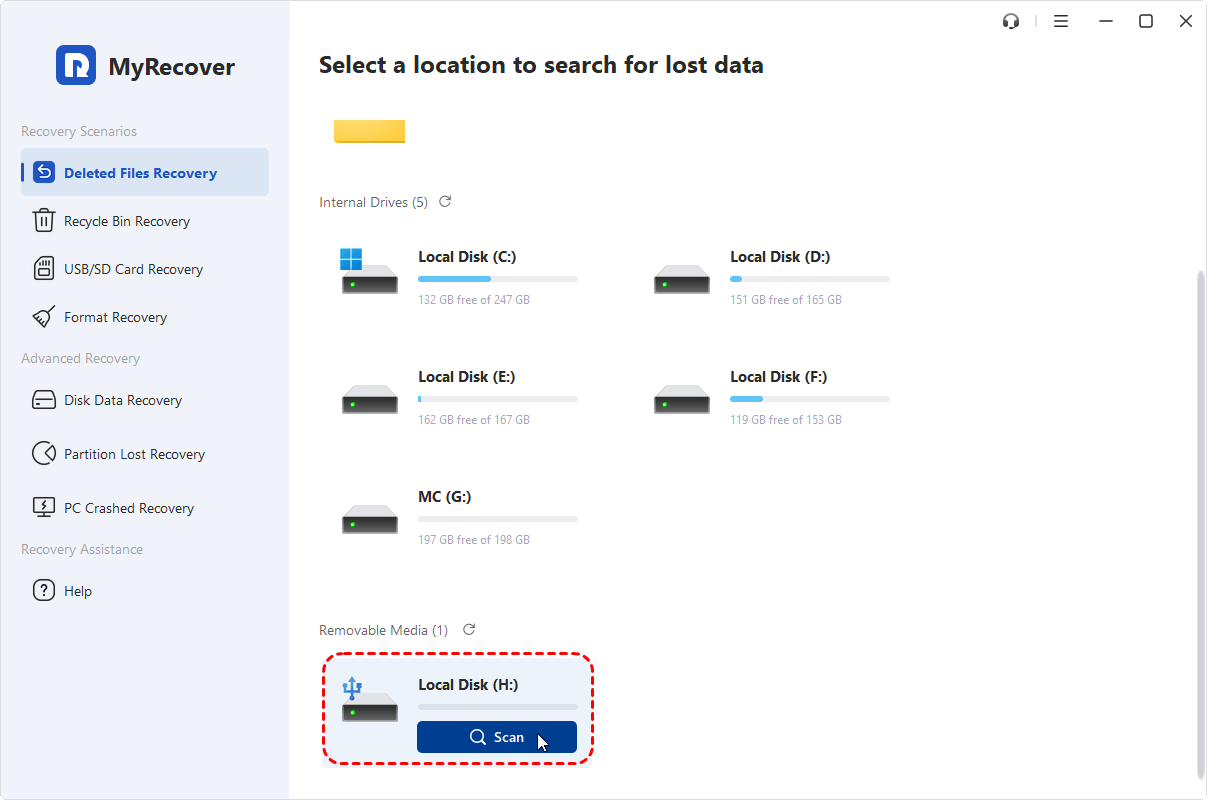
Step 2. Run the program and select the drive, folder or disk where the deleted files were stored, then click "Scan" to search for recoverable files. If you're dealing with deleted partition or formatted drive, the "Deep Scan" can find more lost file fragments.
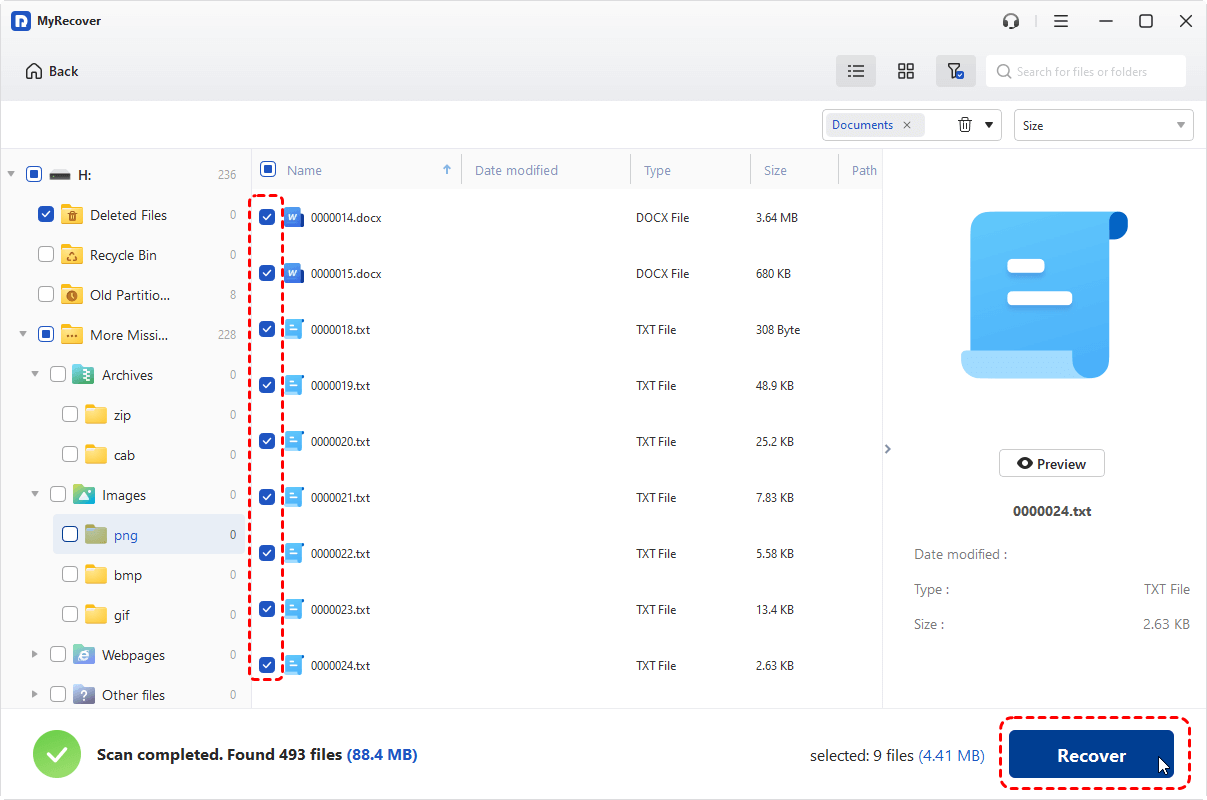
Step 3. After the scan is finished, under the "Path" or "Type" tab, choose the files you would like to recover from the lists and click "Recover". Moreover, you can use the "Filter" feature in the right upper corner to quickly access the recoverable files like documents, images, videos, mails and more.
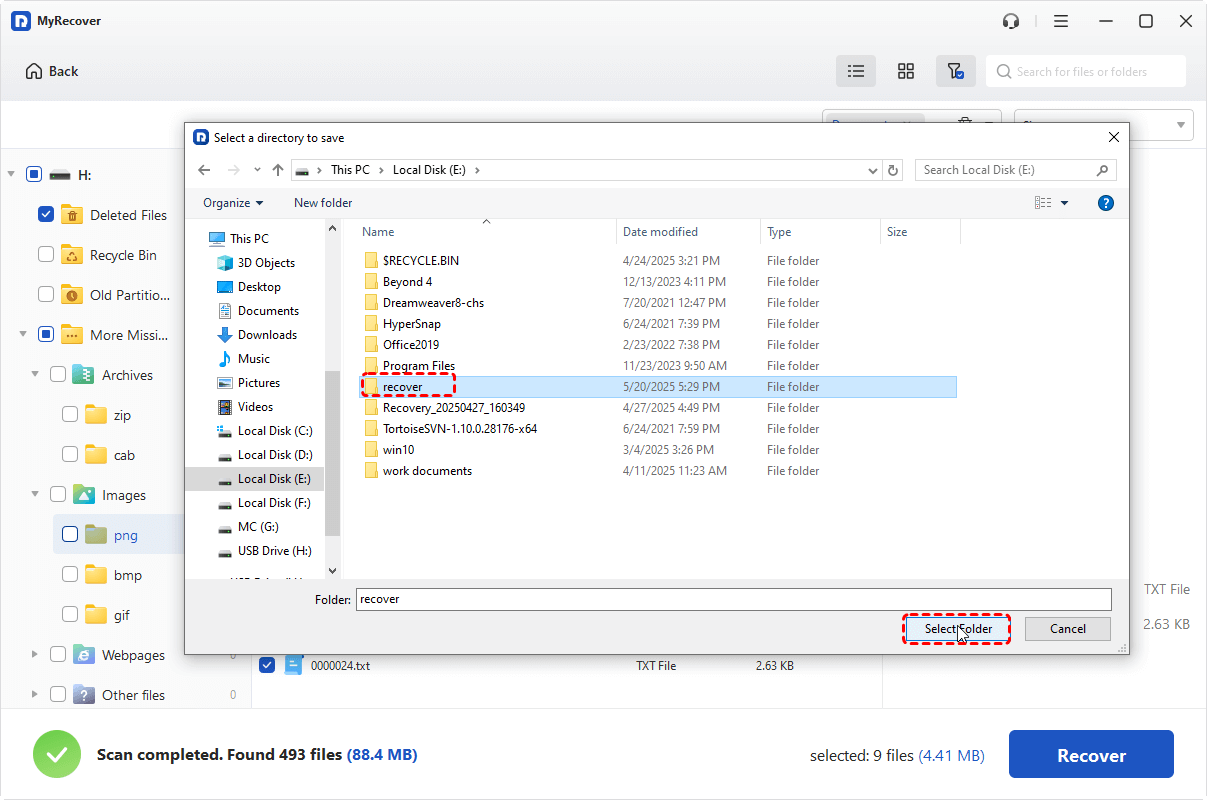
Step 4. Choose another safe location (not the original drive) to save the recovered files and click "Select Folder".
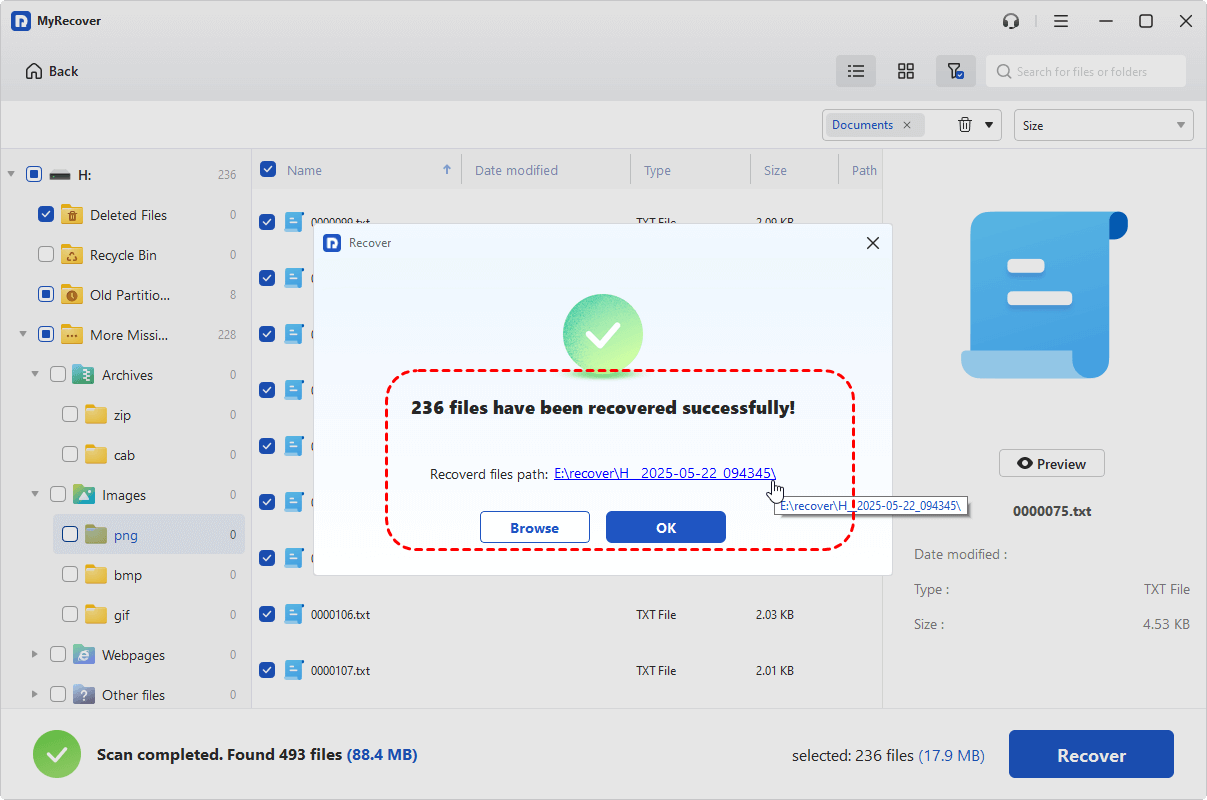
Once the recovery process is completed, a success message "Files have been recovered successfully" will pop up. Then you can click the "Browse" button to open the destination folder and access all the files you got back.
Conclusion
Recovering deleted files on Windows is often possible, as most files are not immediately erased from the disk after deletion. In cases where Windows built-in recovery methods fail to work, no backup copies are available, or complex data loss scenarios occur, MyRecover delivers a professional, reliable solution that gets the job done.
For users who handle large-scale data or need more advanced features, MyRecover’s Professional edition is a valuable investment. It supports unlimited data recovery, file content preview before restoration, and even enables data recovery from a dead computer.
FAQ on Recovering Deleted Files on Windows
Can permanently deleted files be recovered on Windows?
Yes, permanently deleted files can often be recovered because the actual data remains on the disk until it is overwritten. Startup founders should act quickly and minimize new file creation to increase the chances of recovery. Using reliable tools like MyRecover enables efficient data recovery, ensuring critical business information isn't permanently lost.
How do I avoid overwriting data during recovery?
To avoid overwriting lost data, do not save new files or install recovery software on the affected drive. Instead, use a separate drive or device for recovery processes. MyRecover’s "Read-Only Scan Mode" ensures no damage or alteration to the original data during the scanning phases.
What types of files can MyRecover recover?
MyRecover supports the recovery of over 1,000 file types, including documents, photos, videos, audio files, and even email attachments. This versatility makes it an essential tool for startups relying on diverse data formats for operations, marketing, and reporting.
How does MyRecover assist startup founders in managing large-scale data loss?
MyRecover is ideal for startups as it handles over 500 data loss scenarios, including deleted partitions, formatted drives, and system crashes. For entrepreneurs building a digital presence, the software ensures continuity and seamless recovery to avoid disrupting workflows. Learn more about safeguarding startup data here.
Is MyRecover user-friendly for non-tech founders?
Absolutely. MyRecover is designed with a user-friendly interface, allowing non-tech-savvy founders to perform full-scale data recovery with minimal training. A step-by-step guide assists users in recovering vital data efficiently.
Can startups use MyRecover for external storage devices?
Yes, MyRecover supports recovery from external storage devices like USB flash drives, SD cards, and cameras. This capability is crucial for mobile-first or remote startups operating in various locations with different storage solutions.
What security measures does MyRecover employ during the recovery process?
Startups need to prioritize data privacy, and MyRecover ensures this by using local-only scans and recovery processes. This keeps sensitive information secure, aligning well with founders who value confidentiality in their operations.
How does MyRecover scale across different operating systems?
MyRecover works seamlessly on Windows 11, 10, 8.1, 8, 7, and various server platforms. For startups using multiple systems, this adaptability ensures compatibility and simplifies the recovery process across diverse setups.
Are there free and professional editions of MyRecover available?
Yes, MyRecover offers a free version for basic data recovery and a professional edition for individuals requiring advanced features like unlimited data recovery and file previews. Entrepreneurs can start with the free plan and upgrade based on their business needs.
Why should startups choose professional recovery software over DIY methods?
DIY methods, like manual backups or basic Windows features, may not address complex data loss cases effectively. Professional recovery tools like MyRecover provide robust scanning options, ensuring startups retain critical files without spending undue time troubleshooting.
About the Author
Violetta Bonenkamp, also known as MeanCEO, is an experienced startup founder with an impressive educational background including an MBA and four other higher education degrees. She has over 20 years of work experience across multiple countries, including 5 years as a solopreneur and serial entrepreneur. Throughout her startup experience she has applied for multiple startup grants at the EU level, in the Netherlands and Malta, and her startups received quite a few of those. She’s been living, studying and working in many countries around the globe and her extensive multicultural experience has influenced her immensely.
About the Publication
Fe/male Switch is an innovative startup platform designed to empower women entrepreneurs through an immersive, game-like experience. Founded in 2020 during the pandemic "without any funding and without any code," this non-profit initiative has evolved into a comprehensive educational tool for aspiring female entrepreneurs.The platform was co-founded by Violetta Shishkina-Bonenkamp, who serves as CEO and one of the lead authors of the Startup News branch. The Fe/male Switch team is located in several countries, including the Netherlands and Malta.

